显示标签为“vpecker easydiag bluetooth”的博文。显示所有博文

2016年11月7日星期一

(Guide) Vpecker Easydiag OBD2 Scanner connect to WIN 8 WIN 10

This is a guide for how connect and use Bluetooth Vpecker Easydiag OBD2 Scanner with Windows 8 and Windows 10 system. Hope it helps!

bluetooth-version-vpecker-easydiag-8

How connect Vpecker Easydiag diagnostic tool to WIN 8/ WIN 10?
Step 1: Connect Bluetooth Vpecker Easydiag to laptop. Make sure the Bluetooth icon show on the right bottom corner taskbar of the laptop screen.
Step 2: Adding Bluetooth device to the computer: click the icon of the Bluetooth, it will show the interface like the following picture 1, then click “Add a Bluetooth Device”.
vpecker-easydiag-bluetooth-connect-to-win8-win10-1

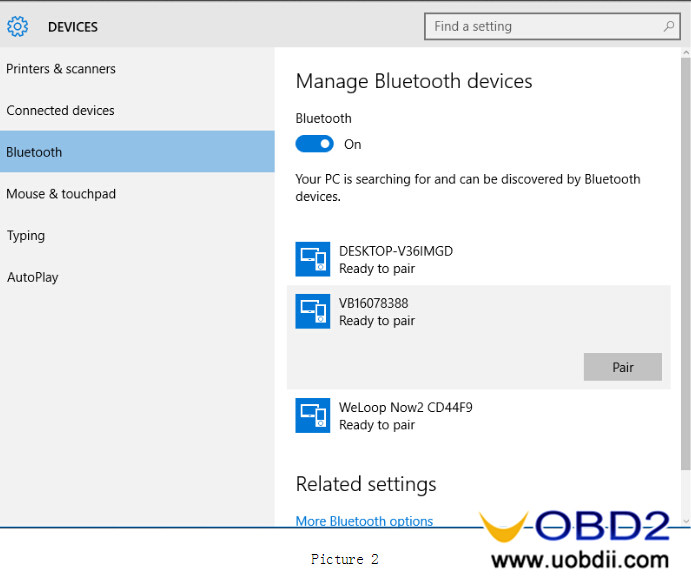
Step 3: Choose and click “Pair” to “VB16078388” Bluetooth device in the searching Interface as the following Picture shows.
vpecker-easydiag-bluetooth-connect-to-win8-win10-2

Step 4: Now you need enter the pairing code (pass code) manually. Input the default pairing code “1234”, click “Next” to pair.
vpecker-easydiag-bluetooth-connect-to-win8-win10-3
Step 6: Wait a while and you will see VB16078388 is connected. It means the Bluetooth device has been added successfully to Windows 8 or Windows 10 laptop.
vpecker-easydiag-bluetooth-connect-to-win8-win10-4
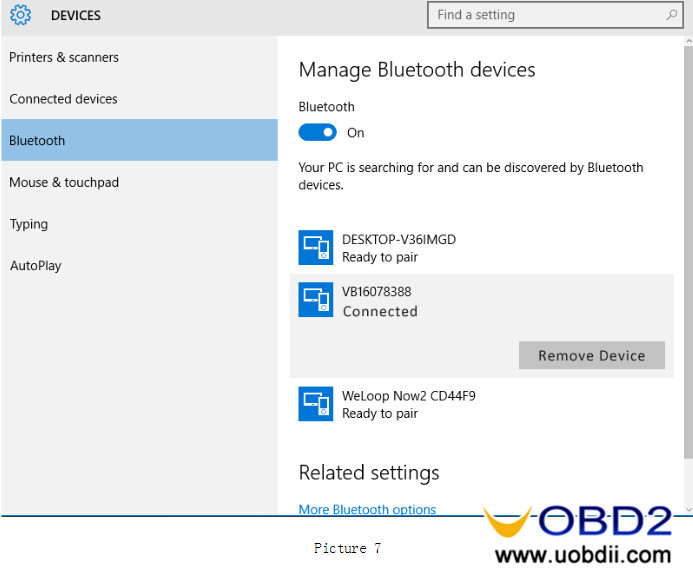
P.S. If Bluetooth Vpecker Easydiag has been added before, and you want to add it again, please delete it first. The steps are as follows:
1. Click right bottom Bluetooth icon, select “Show Bluetooth Device”.
vpecker-easydiag-bluetooth-connect-to-win8-win10-5
  1. Go to “Device”/ “Setting”, find “Bluetooth”, and click the VB16078388 Bluetooth to remove or delete it.
vpecker-easydiag-bluetooth-connect-to-win8-win10-6
If you want to know more about customers feedback,pls read below article:
VPECKER Easydiag Scanner Wireless Bluetooth Feedback

2016年9月4日星期日

What is difference between VPECHER Easydiag Bluetooth and Wifi version

Bluetooth and Wifi VPECHER Easydiag wireless V8.1 OBD2 full diagnostic tool are available in uobd2. They are just a little bit different from each other, check the comparison table below.

2016年9月2日星期五

VPECKER Easydiag vs. X431 5C Pro vs. Carecar C68 vs. Autocom

What’re the difference among WIFI VPECKER Easydiag, Launch X431 5C PRO scanner, DIY Carecar C68 automotive scanner and Autocom//Multidiag DS150E diagnostic system?

2016年8月31日星期三

Bluetooth VPECKER Easydiag V8.2 Released!

Thanks to our developer team’s diligent and hard effort, the newest update V8.2 has been released on uobdii.com. Here is the detail introduction of software VPECKER Easydiag V8.2.
Warm prompt: Before you download the latest V8.2 software, you need to uninstall your old version software.
VPECKER Easydiag Dispaly: